

Here at Ausdroid, we like new toys. When we heard Google announce the Chromecast, we couldn’t wait to order some and have a play. Unfortunately, like many, we discovered that the Chromecast sold out just about everywhere within a couple of hours of the announcement, and they very quickly became very difficult to get.
However, by playing some cards carefully, we’ve managed to get ahold of one, and this evening we’ve put it through its paces (albeit, in a limited sense) because we’ve not had time to fully explore how it could integrate with our lives just yet.
In the box
The Chromecast doesn’t come with an awful lot in the box. As you can see below, we have the following items here:
- Chromecast HDMI dongle
- Power adapter
- USB cable
- HDMI extension dongle
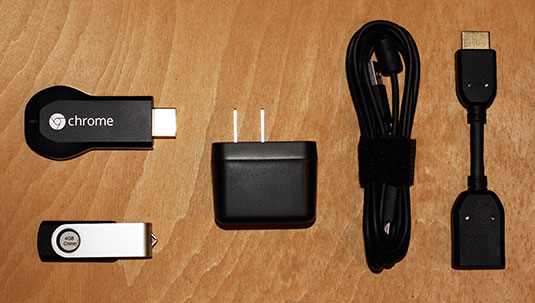
There’s also a common USB flash drive shown for size comparison. It’s not much, but it doesn’t need to be.
Plugging it in
Plugging it in is pretty straight forward; plug the Chromecast dongle itself into a spare HDMI socket on your TV, and either use the supplied charger (there’s good reasons for this) or a spare USB socket on your TV to power the unit with the supplied USB cable. Why would you use the charger when your TV has a USB socket already?
Simple. On some TVs, the Chromecast can actually turn on your set and change it to the right input to get started. This only works if the Chromecast is powered while your TV is off; thus, using a USB socket on the TV won’t achieve this for you. The charger is the way to go.
Setting it up
Setup is really easy. Head on over to https://cast.google.com/chromecast/setup and follow the instructions; you can set up via a computer (I tried it on a Mac and it worked seamlessly) or via your Android device. A word of caution, though: Because Chromecasts aren’t officially available in Australia yet, the Chromecast app can’t actually be downloaded from the Play Store in Australia. Annoying. You can however download the APK by searching for it around the Web (we’re not going to link to it), but frankly, you don’t need it — it’s just as easy to download the desktop companion app and set it up from your computer.
The process is about as simple as this:
- The app searches for your Chromecast, on a self-created wifi network it creates when first powered up.
- On locating said Chromecast, the app (desktop or phone; they work the same way) prompts you to set the Chromecast up on an existing wireless network. You select the appropriate wifi access point (or type it in, if it’s hidden) and enter the password.
- The Chromecast will then connect to your chosen wifi network, and you’re set.
We experienced a couple of issues doing this the first time around, due to our wifi router misbehaving itself. A quick reboot of the router got this problem solved, and the Chromecast was set up and ready to go.
Using the Chromecast
Once set up, either the phone or desktop app will prompt you to (funnily enough) get started playing with your new toy. The desktop app shows a screen like this (which is virtually the same as what’s shown on your phone):
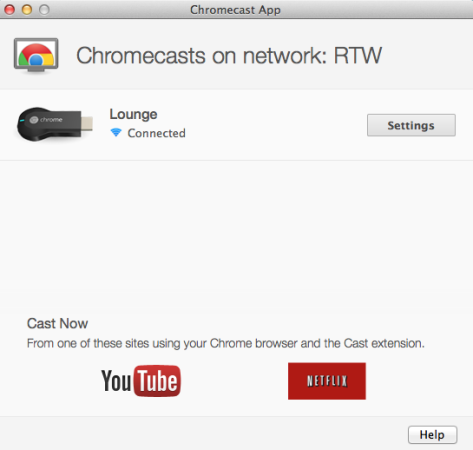
From the desktop, you can cast to your Chromecast from two services (at the moment) using the Google Chrome Cast extension (which you are prompted to install as part of the setup process). Here’s a hint — you’ll be needing Google Chrome as your browser to use it. Youtube and Netflix can be opened up in your browser, and a simple click of the ‘Cast’ button in the top right will send whatever you’re viewing, be it Youtube, Netflix or any other browser tab, to your TV. It’s really easy.
By and large, what you see on your phone will be no different to what you see normally when using a Chromecast-capable app. For example, the YouTube app looks normal when using a Chromecast, except that video doesn’t play — it’s on the TV instead. Otherwise, all the controls remain, but there are a couple of differences as you can see below:
What you see on your TV however is entirely unsurprising. You’ll see whatever you’ve told the Chromecast to play! YouTube videos work in high res, and look pretty fantastic. Google Play Movies perform similarly. Google Play Music streams as you’d expect, and looks and sounds lovely.
Casted Chrome tabs display in high res (you can adjust the size by adjusting the size of your browser window on the desktop) and scroll smoothly, though to be honest, casting tabs to the TV isn’t something I can see being useful too often. Maybe that’s just me.
There is one thing that I did find casting tabs useful for, and that’s streaming content to your Chromecast that isn’t supported yet. For example, Plex is a great thing, but doesn’t support Chromecast yet – though one day, it might:
Wow, lots of interest in Chromecast and Plex. Yes, we've ordered a few of them 🙂
— Plex (@plex) July 24, 2013
Fire up Plex in your browser, navigate to your library and start a movie playing. You can then cast that tab to your Chromecast + TV, and watch the movie on TV (we’ve shown this below).
While it’s doable, it’s not really worth doing. Chances are if you’ve got Plex with a heap of movies and TV shows on it, you’ve got a better method of playing them too, for example a dedicated player, HTPC, PS3 or some other entertainment device. The Chromecast doesn’t really do this terribly well, though if Plex release an Android app that can control Chromecast in the future, it might be a lot more worthwhile!
Thoughts?
Frankly, the Chromecast is cool. It kind of picks up where Miracast leaves off. Miracast wasn’t (and isn’t) widely supported, and the hardware for it (if you can manage to find any) is not usually impressive. LG’s DWD-300 dongles work best of the three I’ve tried, but even still, the features are limited. You can either mirror what’s on your phone to your TV, or in limited cases, you can play video to a Miracast dongle and do something else with your phone.
Cool, but not very useful. In fact, so not useful that I haven’t really used Miracast beyond writing up a quick piece on it awhile ago.
Chromecast picks up at that point, and does more. True, it can’t mirror your phone’s display to your TV, but how many times would you actually want to do this? Playing games on the big screen is really the only use case I can think of, and even then, when using a touch-screen game (such as Angry Birds) it’s rather difficult to play with your hands on the phone and your eyes on the TV — it’s good for showing off to your friends, or allowing others to watch you play.. but really? No.
Chromecast is a bit more selective. You can get your media off your phone and onto your TV — why watch YouTube videos on your phone when this makes it easy to chuck them on the TV instead? Same for NetFlix, Google Play Movies and Music. It’s just easy. Apps are also being written using the newly-released Chromecast API to do more things, such as sharing local media stored on your phone to your TV.
Other vendors are working on Chromecast compatibility as well — ABC’s iView app could be coming in future, and other developers are similarly working on support.
Having used AirPlay in iOS land, you can’t really compare the two — they do some things the same (e.g. watching movies / listening to music on your TV) and some things differently (e.g. Chromecast lets you chuck browser tabs onto the TV, AirPlay doesn’t without mirroring your entire display). Chromecast could well be the Android / cross platform answer to AirDisplay, with one crucial difference — Chromecast works on iOS and Android, as well as desktop operating systems. AirDisplay works on iOS and Mac, and with iTunes on Windows as well.
It’s too early to know whether I’ll use Chromecast regularly going forward; at this stage, I see it as being useful for watching YouTube videos, but I don’t watch an awful lot of those. It’ll be far more useful when more developers support the process and enable sharing of content to a second display.