
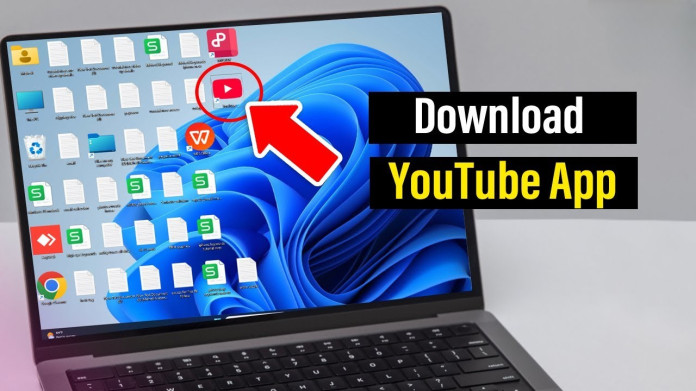
YouTube is the largest video-sharing platform in the world, with millions of videos. It was launched on December 15, 2005, and quickly became so popular that nowadays almost every Android smartphone comes with it pre-installed. But what about Windows, Mac, and Linux? Don’t worry; there are ways you can install it on your PC. In this guide, I will tell you how to download and install it on your OS.
3 Ways to Install YouTube on Your PC
If you’re a YouTube lover who regularly watches videos for entertainment, learning, or news, having an app makes things much easier. You don’t have to open your browser and type youtube.com every time;/ the app lets you access the platform within seconds. Basically, there are three main ways to install it on your system. You can choose whichever option works best for your needs.
1) Progressive Web App (PWA)
The most convenient and easy way is to install the YouTube PWA through your browser. It’s generally lightweight, only a few MBs in size. Developers officially recommend it because it connects directly to YouTube’s servers and keeps your data private. Here’s how to download it:
Google Chrome
- Open youtube.com in Chrome browser.
- Click on the three-dot menu in the top-right corner.
- Scroll down and click cast, save & share>install YouTube.
- A pop-up will appear on your screen. Click install, and you are done.
Note: You can also install it by clicking on the download icon right next to the URL bar in your browser.
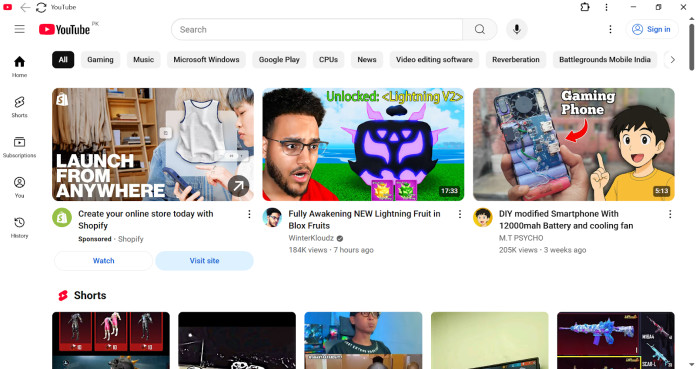
Microsoft Edge
- Open Microsoft Edge in your Windows and go to youtube.com.
- Now, click on the three dots from the top right corner, on the left side of the Copilot icon.
- Go to more tools>Apps>YouTube.
- A pop-up will appear on your screen. Click the install button.
Note: To Uninstall the PWA app, go to Control Panel>uninstall a program, find and erase YouTube.
2) PC App
The second most convenient way is to install a Windows app. This is a third-party app that offers the same app functionality. The good thing is that it is available for Windows, Mac, and Linux without any cost. So, you do not need to worry about which is built for your OS. Here is how to download and install it.
- Download the latest version of the YouTube App For PC on your system.
- Unzip the archive with the 7-Zip file manager.
- Open the extracted folder and run YouTube.exe.
- Watch videos and enjoy.
3) Android Emulator
The last method to use YouTube through an app is using an Android Emulator, e.g, Blue Stacks, or Nox Player.
- Download an emulator like Bluestacks, Nox Player, or LDPlayer.
- Install it on your system and open the Google Play Store inside the emulator.
- Search for YouTube and install it.
This method lets you use the Android version of YouTube, including features like dark mode, subscriptions, and playlists. Use this method as a last resort because emulators will consume more system resources as compared to other apps.
Conclusion
If you want to watch your favorite videos without searching in your browser, just download the YouTube app, and you’re good to go. It’s lightweight and opens within seconds. In addition, it lets you receive notifications for trending videos and new uploads from your subscriptions. If you need any further assistance, just let me know in the comment box and I’ll provide a solution as soon as possible.